
DoDocs Matchpoint API Documentation
Complete guide to integrating DoDocs Matchpoint document processing API into your applications. Extract data from invoices, receipts, and documents with simple REST API calls.
API Overview
The DoDocs Matchpoint API provides programmatic access to our document processing capabilities, allowing you to extract structured data from various document types.
Document Types
Process invoices, receipts, bank statements, contracts, and more.
Real-time Processing
Get results via webhooks or synchronous responses.
Secure & Reliable
Enterprise-grade security with 99.9% uptime SLA.
Base URLs
| Environment | Base URL | Purpose |
|---|---|---|
| API URL | https://api.dodocs.ai | Live production environment |
| Dashboard | https://dodocs.ai | Web dashboard for API key management |
Getting Started
Step 1: Create Your Account
Sign up for a DoDocs Matchpoint account at workspace to get started.
Step 2: Access Your Dashboard
After logging in, you'll see your main dashboard where you can manage documents and API keys.
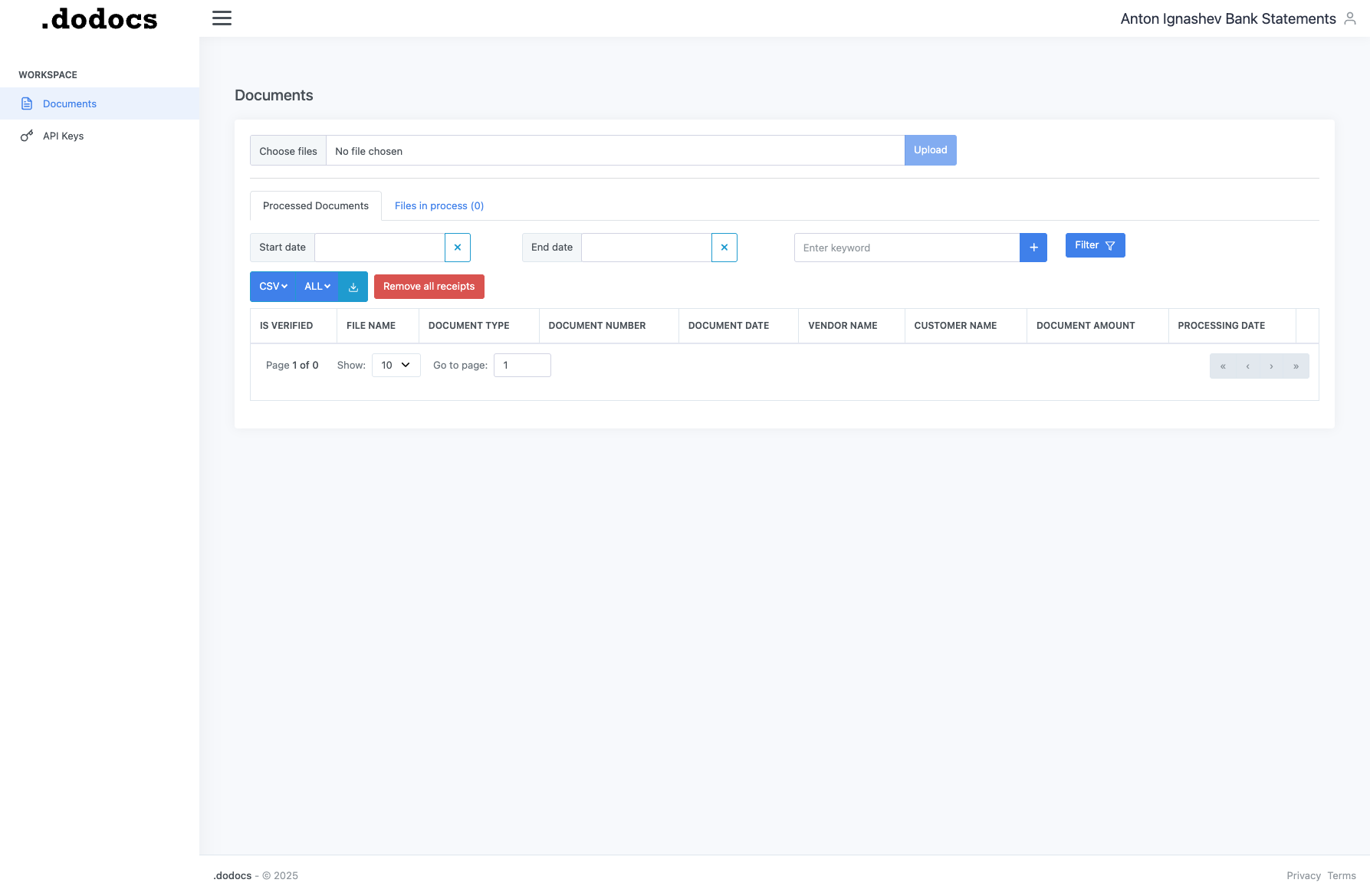
The DoDocs Matchpoint dashboard showing your processed documents
Step 3: Generate API Key
Navigate to the API Keys section in the sidebar to create and manage your API keys.
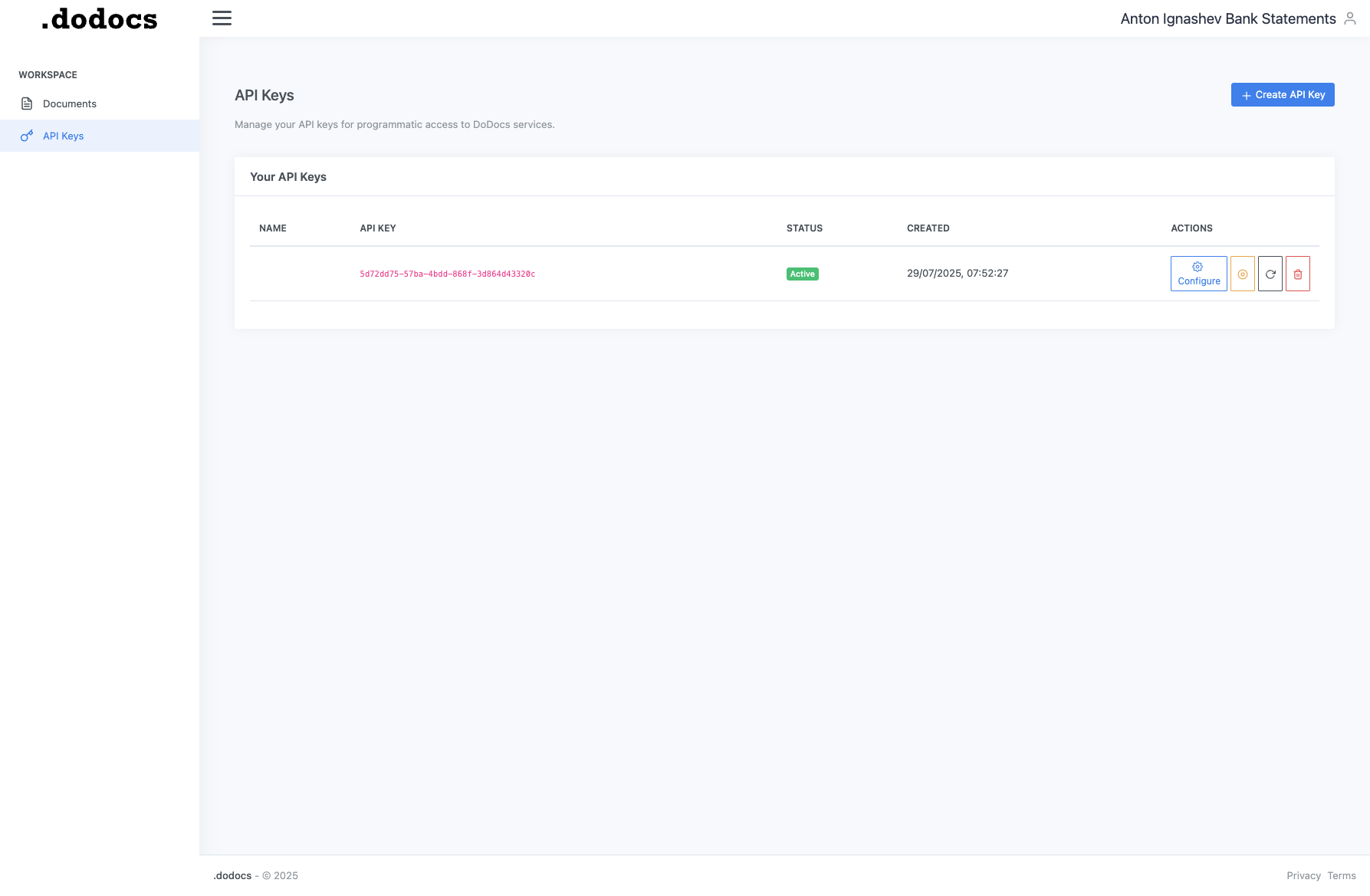
The API Keys management page
Click on "Create API Key" to generate a new key:
Step 4: Test Your API Key
Verify your API key is working with this simple test:
curl -X GET https://api.dodocs.ai/api/v1/health \
  -H "DoDocs-Matchpoint-API-Key: your_api_key_here"
Expected response:
{
  "status": "healthy",
  "timestamp": "2024-01-27T10:30:00Z"
}
Authentication
All API requests must include your API key in the DoDocs-Matchpoint-API-Key header:
DoDocs-Matchpoint-API-Key: your_api_key_here
API Key Format
- Length: Typically 40–50 characters
- Case sensitive: Keys must be used exactly as provided
Security Best Practices
Do:
- Store API keys in environment variables
- Use different keys for development and production
- Rotate keys regularly (every 90 days recommended)
- Use HTTPS for all API calls
Don't:
- Commit API keys to version control
- Include keys in client-side code
- Share keys between applications
- Use keys in URL parameters
Making API Calls
Document Upload Endpoint
/api/v1/uploadUpload documents for processing using multipart/form-data.
Request Parameters
| Parameter | Type | Required | Description |
|---|---|---|---|
metadata | JSON String | Yes | MUST be first field in request. Processing instructions and configuration (can be empty: {}) |
file | File | Yes | The document file to process |
metadata field must always be the first field in the multipart request. The order matters — add metadata first, then the file.Metadata Options
{
  "clientReference": "ORDER-123",  // Optional: Your reference ID
  "urgent": true,                  // Optional: Priority processing
  "language": "en"                 // Optional: Document language
}

// Or can be empty:
{}
File Requirements
| Format | Extensions | Max Size |
|---|---|---|
| 50 MB | ||
| Images | .jpg, .jpeg, .png, .tiff | 25 MB |
| Word | .doc, .docx | 25 MB |
| Excel | .xls, .xlsx | 25 MB |
| Text | .txt, .csv | 10 MB |
Webhook Configuration
Webhooks allow you to receive real-time notifications when your documents are processed.
Setting Up Webhooks
Configure webhooks through the API key settings in your dashboard.
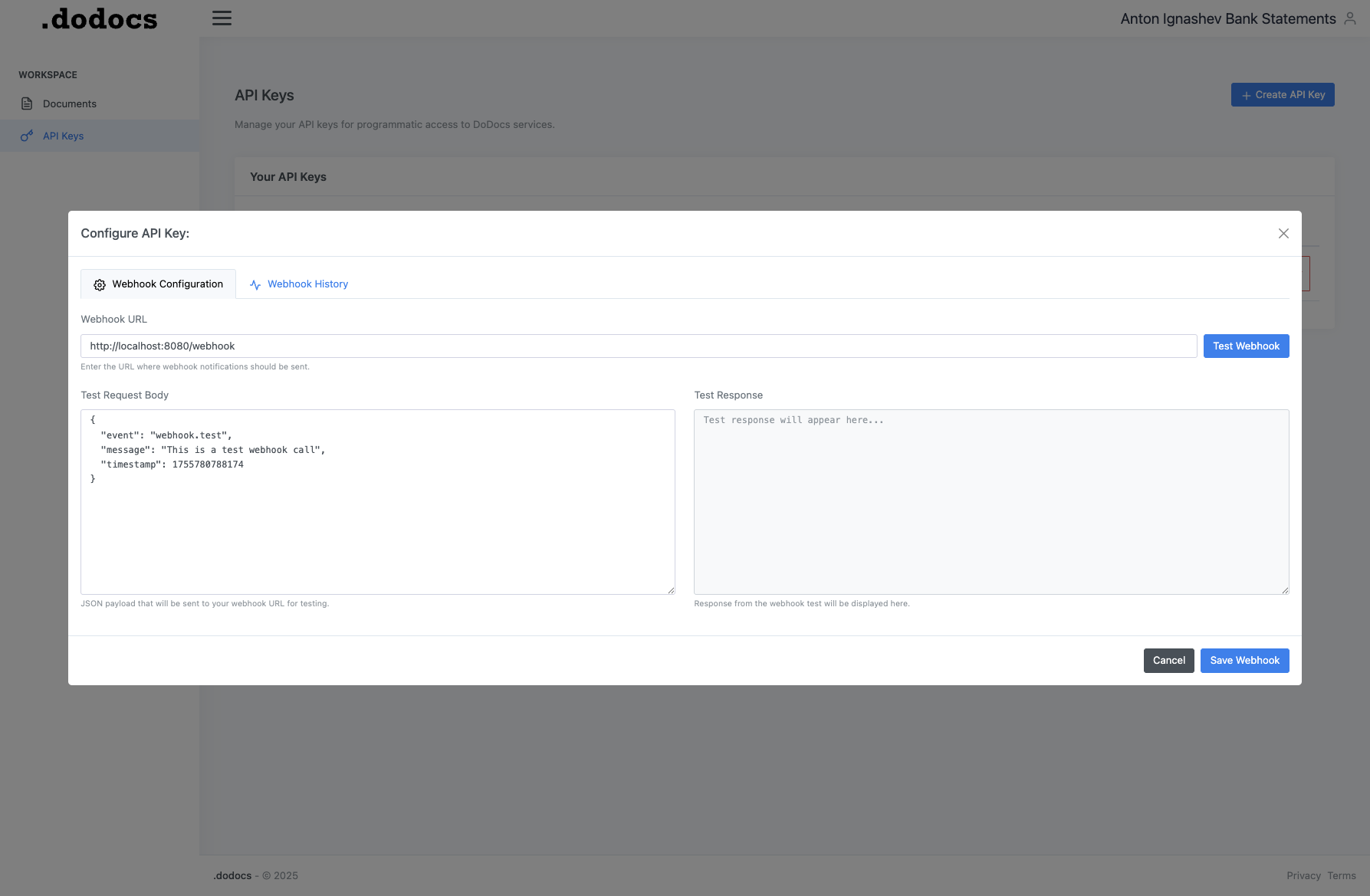
Webhook configuration interface
Webhook Events
document.processed
Sent when document processing completes successfully.
{
  "requestId": "75193012-0885-4db7-b5ce-7506e169c80c",
  "documentData": "[{\"fileName\":\"Transaction_Summary.xls\",\"documentType\":\"Bank Statement\"}]",
  "errors": []
}
document.failed
Sent when document processing fails.
{
  "requestId": "8b6683c7-e583-4fbc-aa23-5bf1d22d32eb",
  "documentData": "[]",
  "errors": [
    {
      "code": "EXTRACTION_FAILED",
      "message": "Unable to extract data from document",
      "details": "Poor image quality or unsupported format"
    }
  ]
}
Webhook Headers
Every webhook request includes these headers:
X-Webhook-Signature: sha256=abc123...
X-Webhook-Event: document.processed
X-Webhook-ID: unique-webhook-id
X-Webhook-Timestamp: 1706354400
Content-Type: application/json
Signature Verification
Always verify webhook signatures to ensure they come from DoDocs Matchpoint.
Python
import hmac
import hashlib

def verify_webhook(payload, signature, secret):
    expected_signature = hmac.new(
        secret.encode('utf-8'),
        payload.encode('utf-8'),
        hashlib.sha256
    ).hexdigest()

    expected = f"sha256={expected_signature}"
    return hmac.compare_digest(signature, expected)
Node.js
const crypto = require('crypto');

function verifyWebhook(payload, signature, secret) {
  const expectedSignature = crypto
    .createHmac('sha256', secret)
    .update(payload)
    .digest('hex');

  const expected = `sha256=${expectedSignature}`;

  return crypto.timingSafeEqual(
    Buffer.from(signature),
    Buffer.from(expected)
  );
}
Code Examples
Python — Upload Document
import requests
import json

url = "https://api.dodocs.ai/api/v1/upload"
api_key = "your_api_key_here"

# Prepare metadata (must come first in the request)
metadata = {'clientReference': 'INV-2024-001'}
data = {'metadata': json.dumps(metadata)}

# Prepare the file
files = {
    'file': ('invoice.pdf', open('invoice.pdf', 'rb'), 'application/pdf')
}

# Make the request
response = requests.post(
    url,
    headers={'DoDocs-Matchpoint-API-Key': api_key},
    data=data,
    files=files
)
print(response.json())
Python — Handle Webhook
from flask import Flask, request

app = Flask(__name__)

@app.route('/webhook', methods=['POST'])
def handle_webhook():
    event = request.json
    if event['event'] == 'document.processed':
        handle_processed(event['data'])
    elif event['event'] == 'document.failed':
        handle_failed(event['data'])
    return '', 200

def handle_processed(data):
    print(f"Document processed: {data['extractedData']}")

def handle_failed(data):
    print(f"Processing failed: {data['errorMessage']}")

if __name__ == '__main__':
    app.run(port=3000)
Node.js — Upload Document
const FormData = require('form-data');
const fs = require('fs');
const axios = require('axios');

const form = new FormData();
// Metadata must come first
form.append('metadata', JSON.stringify({ clientReference: 'INV-2024-001' }));
form.append('file', fs.createReadStream('invoice.pdf'));

axios.post('https://api.dodocs.ai/api/v1/upload', form, {
  headers: {
    'DoDocs-Matchpoint-API-Key': 'your_api_key_here',
    ...form.getHeaders()
  }
})
.then(response => console.log(response.data))
.catch(error => console.error(error));
cURL — Upload Document
curl -X POST https://api.dodocs.ai/api/v1/upload \
  -H "DoDocs-Matchpoint-API-Key: your_api_key_here" \
  -F 'metadata={"clientReference":"INV-2024-001"}' \
  -F "file=@invoice.pdf"
cURL — Test Webhook
# Use webhook.site for testing
# 1. Go to https://webhook.site
# 2. Copy your unique URL
# 3. Configure it in your DoDocs Matchpoint dashboard

# Or use ngrok for local testing:
npm install -g ngrok
ngrok http 3000
Support & Resources
Need Enterprise Support?
For enterprise support with SLA guarantees, dedicated account management, and priority support:
Contact Sales